Showing posts with label windows. Show all posts

Thursday, December 31, 2009

Supporting Technology with Technology.: Enable 24 bit color in RDP for XP or 2003 Server


Supporting Technology with Technology.: Enable 24 bit color in RDP for XP or 2003 Server

Share/Save/Bookmark


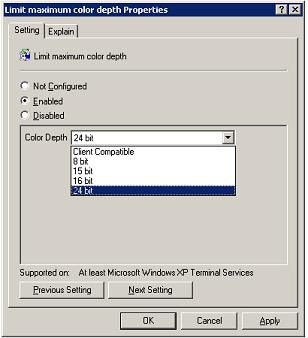
The inability to connect to an XP or windows 2003 server computer using RDP with a color depth higher than 16 bits is a default setting on the remote computer. It can be chanegd on the remote server or XP desktop. No reboot is required t osee the results of the change. A goup policy change on the remote computer or in a domain group policy object klink to the domain or an OU can be applied.
making the change to the local policy or to the domain policy will allow connections to with true color 24 bit rdp.
A pre-defined default limit on XP or windows 2003 server limits the color depth of RDP connections to 16 bit maximum. How to configure the "server side" of remote desktop to accept connections at 24-bit true color.

Sunday, July 19, 2009

Disable IE Enhanced Security on 2008 Server

Disable IE Enhanced Security on 2008 Server


Well, as with many other things, the method to remove the IE Enhanced Security Configuration from 2008 windows server has moved. It was once easily found in the familiar Add/Remove programs applet through control panel and clicking on windows components would reveal additional options installed by the the OS for specific functions or roles of the server to operate. Now, it's moved to server manager in Windows Server 2008.
Windows Server 2008 installs by default with the Internet Explorer Enhanced Security enabled. So if you noticed, the Add/Remove programs in Control Panel is no longer used for adding and removing any Microsoft windows Server operating components. For so many years it was in that location, found through control panel but now it has changed with the new face of Windows Server 2008 so we all need to get used to as we've done for many other changes.

Server Manager is now used for managing Server Components, mainly throught the Roles and Features nodes, but IE Enhanced security is not listed here either. Remove IE Enhanced
Security with Server Manager:
Start -> Administrative Tools -> Server Manager
The root node is highlighted, in the right column, under the Security Information heading, click Configure IE ESC
Disable IE ESC for Administrators and/or Users

Having the enhanced security applied to the browser by default on servers is a nice thing to have. Many of us however do use the browser on the server to find driver updates and other things we need to perform tasks on the server wicthout the extra security nag.
Disable with Script or Registry Edit:
There will be a need somewhere to disable the Enhanced security feature of Windows server 2008 by using a script based method for automation of the process or by manully making the edits in the registry. Disable 2008's enhanced security using a script or a direct manual registry edit is through a registry setting that the GUI modifies. Specifically the IEHardenAdmin and IEHardenUser, so you could use a simple script to modify this setting. Refer to the following TechNet Article for more information.
http://technet.microsoft.com/en-us/library/cc749170.aspx

Monday, June 29, 2009

Disable IE Enhanced Security on 2008 Server

Disable IE Enhanced Security on 2008 Server


Well, as with many other things, the method to remove the IE Enhanced Security Configuration from 2008 windows server has moved. It was once easily found in the familiar Add/Remove programs applet through control panel and clicking on windows components would reveal additional options installed by the the OS for specific functions or roles of the server to operate. Now, it's moved to server manager in Windows Server 2008.
Having the enhanced security applied to the browser by default on servers is a nice thing to have. Many of us however do use the browser on the server to find driver updates and other things we need to perform tasks.

Tuesday, August 26, 2008

Can't find explorer.exe or iexplore.exe when run from task manager

Can't find explorer.exe or iexplore.exe when run from task manager on a Windows XP computer.
This is a post worth noting. A computer was brought to me after a support person had removed all kinds of trojans, malware and badware from the computer using various tools. The latest and widespreading of these has been Antivirus XP 2008 and Antivirus 2008. The aftermath of this was that the computer was clean but windows can't find explorer. There are many people who have and are still encountering this problem and all forum post that I found while trying to find an answer have not yielded an answer. they all result in the end with the person who is supposed to know this stuff posting to the forum telling the not so experienced person looking for help and advice to re-install XP.
I too have tried to find an answer as to why the explorer.exe file, although shown in the windows directory, could not run when started using Windows Task Manager or even when run using or through a command prompt. The file was there but it would not start when run.
This was a strange problem that started when a computer was infected with mal-ware, ad-ware and other Trojans and bad stuff that so many users manage to get themselves in trouble with. A common aftermath it seems after searching the web for an answer or running smitfraudfix. Although I didn't run this tool, other tools to remove root-kits and other bad software were executed and all the harmful software was removed. The problem now was, and that's when this computer was brought to me, was that explorer.exe would not start. The computer at login would just show a blank desktop. Nothing but the back ground with now icons or task bar. this was a curious problem and after running some tools myself saw that there was no harmful software remaining on the computer.
After trying to track down the cause of the problem by using the error message, I saw that no one had an answer for this problem and the only way some people were able to overcome the problem was to re-install XP pro. The people tried doing a repair install still had the problem or their re-installation efforts of XP failed because they hung up at the part when explorer has to start. A re-installation doesn't "clean out" the registry of erroneous things. It merely replaces system files and adds folders that may be missing (let's not forget it loads devices drivers too). It turns out that the clue to this problem is not in the error message when run from task manager bu t the answer lies when explorer.exe is run from a command windows or prompt. The error for when explorer.exe is different than any other made up program name. This is the common error message when a program that truly cannot be found is executed:
When you try to run explorer.exe, the message states that the program cannot be found or something close to that. It;s not the generic message of a truly mistyped, mis-spelled, or missong program. There is a little know registry location where program "images" can be defined and that's where the problem was located. One little registry setting in an obscure location was preventing explorer.exe from starting. Supposedly this same problem has been experienced by users with Internet Explorer too but I've not seen this one before. If you having problems with Internet Explorer not stating when the program is clearly installed, try this fix for it too. To find the registry setting please go to this blog post and remember to link to both post and sites and bookmark us in your favorite online bookmarking/sharing sites like delicios, technorati, digg, and others. Can't find explorer.exe when run from task manager or a command prompt http://pctechnow.blogspot.com/2008/08/cant-find-explorerexe-when-run-from.html For software that gives techs the ability of web based remote desktop support at an affordable cost try http://www.4remotesupport.com/

Friday, January 11, 2008

Acronis Disk Director 10 - My Review and Opinion


Acronis Disk Director 10

Acronis Disk Director Suite 10.0 combines several other previous Acronis disk management tools into a single solution:

Partition Manager allows you to move, resize, copy, merge, and split partitions without losing valuable data.

Boot Manager is a utility software to create a multi-boot environement. It allows you to install multiple operating systems on your computer PC.

Partition Recovery allows you to recover accidentally deleted or lost drive partitions.
Disk Editor is a repair tool for disk drives. It allows you to perform advanced hard disk operations, such as restoring boot records and hexadecimal editing.


I had the opportunity to actually see Acronis® Disk Director Suite 10.0 in action. It was simply amazing as I watched a partition get re-sized almost instantly. what would have taken several hours to complete by reinstalling the operating system then also installing the applications on the computer to get to the same point.

It was the easiest and most convenient partition manager and hard disk toolkit I've seen. I thought partition Magic was a great partitioning software, Acronis made partition magic look child like in it's ease of use and the way it did not falter at all.

With the creation of this suite of disk utilities, Acronis brings together the most popular boot disk manager, partition recovery tools, and disk management functions in one installation package. I thought it was a great product and would recommend it to anyone who needs to resize a partition and it could do a whole lot more.