Tuesday, January 24, 2012

Basic Differences Between CAT5, CAT5E, CAT6, CAT6e, CAT6a Cables


  RJ45 Pin-out for Network Connection 


Troubleshooting cabling problems in most cases has to be done onsite. A cable technician would have to be at the location to use tools for diagnosing cables such a toner. Desktop and networking hardware that are interconnected by network cables can be remotely access online. Applications such as online desktop support software provides the access into a network over the web from which connection could be tested,  network switching can be configured or diagnosed. 
 

Basic Difference Between CAT5,CAT6,CAT6e and CAT6a Cables
 
Category 5
Category 5 cabling transmits at a frequency of 100MHz. This provides a rated line speed of up to 100Mbit/s and a cable segment length of 100 meters maximum. Most Category 5 cables, were designed for earlier networks replacing cat 3, only used two twisted pairs of wires. However, older Category 5 cabling continues to make up the majority of the world’s network cabling infrastructure.

Category 5e
Category 5e was later introduced as an improved specification to the very popular Category 5 that replaced Cat 3.  The improvement was in noise reduction. By reducing the noise and signal interference beyond Cat 5, Category 5e rated transfer speeds increased to 350 Mbit/s over 100 meters. The new 5e cabling standard however also required all the cabling to include four twisted pairs not just two like with Cat 5. All eight contacts has to be used. Cat 5e introduced and optimized encoding scheme that allows up to 50-meter lengths of Category 5e cable to provide at or near Gigabit Ethernet (1000BASE-T) speeds. This was during the era of the early stages of Gigabit

Category 6
Gigabit Ethernet (1000BASE-T) became mainstream and required new industry-standard cables capable of transmitting at a higher frequencies than Cat 5e to go beyond the 50 meter limitation. Cat 6e transmits at 250 MHz. The new Category 6 cable uses thicker-gauge wire to attain the higher frequencies, it has increased shielding, and more pair twists per inch to reduce signal noise and interference. The new tighter specifications introduced with Cat 6 cabling guarantee that 100-meter runs of Category 6 are capable of 1000 Mbit/s transfer speeds. As with 5e reducing the cable length can achieve higher speeds than the category types design goal so 10-Gigabit Ethernet speeds can be achieved  when reducing cable lengths to less than 50 meters.

Category 6e
The limitation of 50 meters of 10Gigabit was over come with Category 6 Enhanced (6e).  Cat 6e is an augmented specification designed to double transmission frequency of Cat 6 to 500 MHz. It has the more pair twists per inch as does Cat 6 but it's also wrapping Category 6 in grounded foil shielding, a full 10-Gigabit Ethernet speeds can be achieved without sacrificing the max cable length of 100 meters.

Category 6a
Category 6a (or Augmented Category 6) is defined at frequencies up to 500 MHz—twice that of Cat. 6 but he same as 6e. Because it is shielded, Cat 6a performs at improved specifications over 6 and 6e, in particular in the area of alien cross-talk when compared to Cat 6 UTP   Cat 6 UTP exhibited high alien noise in high frequencies.6A. To reduce the noise, 6a EA specification (not EIA/TIA) require a new generation of connecting hardware that offers far superior performance. 6A connectors performs 3 dB better than a Cat 6a connector that conforms with the EIA/TIA specification. 3 dB equates to 100% increase of near-end cross-talk noise reduction. 


More wire specifications and a practical case example use of 10GB is available at this additional location - Differences Between Category 5 and Category 6 . The use of special case cables such as cross-over cables is also covered at the same article location.




Wednesday, January 18, 2012

Exchange Management Shell Create New User with Exchange 2010 Shell


Exchange Management Shell Create New User with Exchange 2010 Shell

Command:

New-Mailbox -Name 'new user' -Alias 'nuser' -UserPrincipalName 'nuser@your-domain.com' -SamAccountName 'nuser' -FirstName 'new' -Initials '' -LastName 'user' -Password 'System.Security.SecureString' -ResetPasswordOnNextLogon $false


I used this just today and it worked very nicely. I suspect the command can be oput into a script or batch file to create many accounts without the need for exchange 2010 Managment console.

Tuesday, December 6, 2011

Enable SSH on VMWare 5 ESXi

How to Enable SSH Access on VMWare vSphere 5 ESXi


Enabling SSH remote access to the console of an esxi 5.0 vmware host server is the same as in ESXi 4.1 (not 4.0 and earlier). In 5.0 vmware vSphere ESXi and 4.1 vmware vSphere ESXi it can be accomplished using the vSphere client. With earlier versions, like enabling SSH on ESXi 4.0, it had to be done via the server console.

Enable SSH on VMWare 5 ESXi

How to Enable SSH Access on VMWare 5 ESXi


Enable SSH for remote connections from the vSphere Client
perform the following short steps to enable access to the ESXi Shell using the vSphere Client:
- Logon to the up to date VSphere client
- Select from the list of hosts the ESXi host you want to configure and choose Configuration then -> Security profile
- From the Services section under Security Profile, select Properties
- Select the SSH option in Properties and choose Options
- Select Start to start SSH on the host.
- Repeat the process for each ESXi 5 host.

There is no global or farm-like setting that would allow you to do all your hosts at once. Perhaps that will come in the next version ESXi 6 .


Saturday, December 3, 2011

XenApp 6 HP Universal Drivers with Session Printers

XenApp 6 HP Universal Drivers with Session Printers

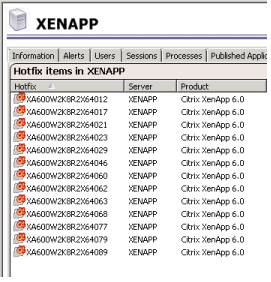
In a few words I can tell you that using HP Universal drivers with Xenapp 6 to create or add session printers to user's ICA session is not a good idea. The drivers corrupt very quickly. I was involved in a Citrix Xenapp 6 deployment, a small deployment, of six servers. The installation was fresh so there was no history to be brought into the mix and be factored in as a collateral cause. Xenapp was installed on 6 new virtual 2008 R2 servers (The virtual architecture was VMWare 4.1) . It was a new Citrix xenapp farm and the server 2008 R2 server had all the OS updates. The xenapp servers ha the following hotfixes:


The Citrix Online-Plugin was updated through the office to version 12 of the full plug-in. All desktops were XP. The goal was to add session printers through Citrix policies. What printers were added depended on the location the user was in. If they were in office location A they would get a certain number and type of printers. If they were in location B they would get another different set of printers and so on. The policy used the ip address of the client as the method to determine the location. That worked well. Session printer creation worked well in all tests before the app went live. Apparently, the one thing I can conclude is there was not enough load on the server to be an issue. Once the office had gone live with their published applications, within a week there very strange things happening. Printers that were not supposed to be part of the session were listed. Ghost or phantom printers that were in the session and did not belong could not even be printed to. The users would get access denied messages. The logs on the server were riddled with errors. Default printers were being set to these ghost or phantom printers and even when changed , they would just revert back. Then, there was no consistency either as to what "extra" printer would appear in the session at each login.
The problem was traced down to the HP Universal driver. Yes, it was the latest release from HP and yes all printers were on the supported printer list from Citrix.
The tool that was used to test the printer drivers was StressPrint. The driver was removed and re-installed. All seemed well for a few days and then the problem arose again. Of course this time the driver was removed and printer specific drivers were used.

Thursday, November 24, 2011

IP SLA Monitor Example for Fail-over Survivability of ISP

Configure ASA to allow traceroute responses


Technical issues with Cisco routers and switches can also be resolved remotely with software that facilitates connection through the web. Online desktop support software gives technical support teams that access. Access desktop , servers and network devices remotely. 
 
The following link is to an IP SLA configuration on a Cisco router that does not use the monitor command option:

Cisco ISP Failover IP SLA Configuration Example

IP SLA Monitor Example for Fail-over Survivability of ISP Cisco IP SLA MONITOR example configuration. The IP address have been changed but this is a working configuration I just recently implemented. This office, actually and remote office with warehouse, has a T1 line they wanted a custom application to use exclusively but also had a DSL that was connected to a Cisco ASA 5505 (it could have been a Cisco 5510 or other). The ASA was also on the same LAN. The idea was simple, if the T1 fails, use the DSL for the custom application to connect to an online database source and server. There are two tracker objects in a tracker list. The list uses a boolean AND, track 10 rtr 20 reachability --> a ping to a target ip address for which there is ONLY a single static route to use the T1. This differs wit hthe IP SLA MONITOR vs. the IP SLA (with no MONITOR option available. Here, we had to use RTR instead of specifying the ip SLA number itself)) track 11 interface Serial0/1/0:0 line-protocol --> Interface status track 20 list boolean and --> boolean AND, boolean AND means all conditions conditions have to be true , almost seems redundant but TAC did it this way on another remote office router. object 10 --> tracker 10 shown above object 11 --> tracker 11 shown above ip route 4.2.2.2 255.255.255.255 192.168.1.11 track 20 --> tracked main route ip route 4.2.2.2 255.255.255.255 192.168.1.1 100 --> alternate route is used if T1 is down ip sla monitor 20 --> referenced in tracker 10 type echo protocol ipIcmpEcho 8.8.8.8 source-interface GigabitEthernet0/1 --> had to use the interface as source, using the ip address did not work (another bug, perhaps) , there is an explicit static route that says any traffic for 8.8.8.8 use the T1 (there are several ways to do this and you should test them on your router to be sure you can from the IOS command line ping and try all source interfaces before building this line. You can create the router using the next hop router for the T1 connection, or the route can be built by specifying the interface to source the ping from such as S0/1/0:0 on this router, or source the ping from the "inside" interface) So if there is a problem with the T1 the pings will time out. timeout 1000 --> max ping reply time allowed in milliseconds threshold 2 tag 20 frequency 5 --> status is checked every five seconds ip sla monitor schedule 20 life forever start-time now --> scheduler for monitor 20

Cisco IP SLA Example for ISP failover

Wednesday, November 17, 2010

Link to Download Older Adobe Reader Versions


The link above give you a convenient selection menue to choose a version you need or prefer.
I needed 8.2 on a server. The link to select older versions can be hard to find on Adobe's site and searching for the link can have you clicking in cirlcles.